Saga puzzles not working? Simple fixes and tips to get you back on track
Struggling to load a puzzle or not sure how to make the most of the features? Try these simple tips and fixes for Saga’s crosswords, sudoku and codeword.
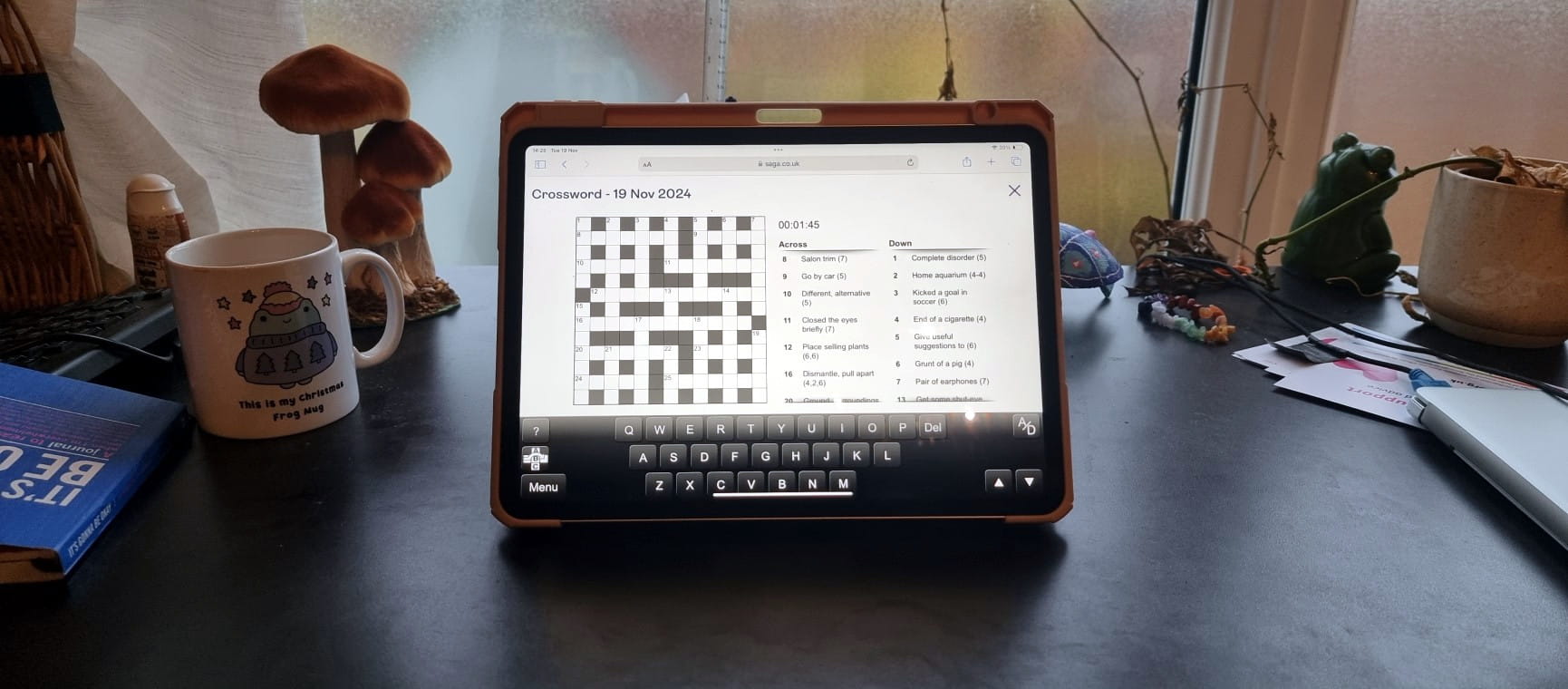
There’s something uniquely satisfying about a good puzzle, whether it's that moment when the final clue clicks into place or the numbers suddenly make sense.
It’s the small daily win that so many of us look forward to.
If you haven't already discovered Saga's daily puzzles there's a host of free ones to chose from, whether you’re a regular solver or just getting started.
If you are new to Saga's puzzles there are a few technical tricks that will help make your experience even better.
Look out for the '?' symbol - here you'll find the hint options for when you need a little help with a clue.
You'll also find written instructions here, so whether you're new to this type of puzzle or just looking for a refresher, we've got you covered.
Most of the time, Saga puzzles should work smoothly on your device. But if something doesn’t look quite right – whether a puzzle won’t load, freezes or doesn’t display properly – there are a few simple things you can do to get back on track.
Whatever your device of choice for puzzling, it’s important to keep it as up to date as possible.
Whilst the majority of operating systems are supported, including both iOS and Android, some older operating systems and devices might not be, and you may encounter issues with Saga puzzles as a result.
Try updating to the latest available OS version for your device. If you’re still having difficulties, try some of our other tips below.
We extensively test our puzzles on the following browsers: Internet Explorer 10, Internet Explorer 11, Chrome, Safari, Opera, Firefox PC.
Due to how our puzzles are developed, the most stable browser to use is Google Chrome.
If you’re presented with a white screen with a ‘Loading…’ message in the bottom right, your device may be struggling with slow internet speeds.
In most cases our puzzle should load within 4 to 12 seconds depending on your connection speed, and any longer might suggest a problem with your connection.
If you do see the ‘Loading…’ message, you may just be able to wait for the interactive menu screen to load.
If not, consider our tips for improving your internet connection.
If you’ve been a long-term Saga puzzler and you’re suddenly experiencing issues, then the problem might be with your device storage.
For some internet browsers there is a hard limit on how much information can be stored about a certain website, and if you’ve been with us for the long haul, then you might be hitting that limit.
However, we have a solution, tried and tested by our loyal long-term players:
If you can't see all the puzzle on the screen, you are having problems inputting letters or numbers into grids or it keeps freezing, there are a few simple tricks to address this.
Having your browser zoomed to more or less than 100% will affect the layout of our puzzles on your screen.
Using levels of zoom other than 100% can lead to overlapping and other issues, so if you are having issues, follow these instructions:
Cookies are the means by which your puzzle progress is saved and stored in your browser. This information, like all digital information, can be corrupted and cause issues.
If you’re experiencing issues inputting letters or numbers into grids, if the grid becomes corrupted, or if the puzzle keeps freezing, then closing the browsing window and clearing your cookies should reset the puzzle.
While the term ‘Clearing cookies’ may seem like a peculiar one, actually doing it is not as complicated as its naming might suggest.
Just go into your browser settings and clear your cache and browsing history if you’re running into problems.
Just be warned, this will likely result in your current state of play being lost, so it’s best to do this before or after your puzzling session to prevent all your hard work going to waste.
If your device browser is set to private, then our interactive puzzles can’t access the proverbial cookies jar, and you’ll be greeted with a blank screen instead of a brain teasing treat.
To rectify this problem, simply check the following:
Whether you're looking for straightforward insurance or cover that's packed with extras, our home insurance has plenty of options for people over 50.
Click below for your chance to win a 15-night cruise to the Canary Islands on board Saga's Spirit of Adventure, worth more than £8,300.
Ingenious speakers, brilliant earbuds, nifty note takers - our expert picks his top tech gifts.
Electric models are set to dominate the market next year, including a flood of budget Chinese brands.
How breaking my phone ruined one of the best nights of my life - and the expert lessons that will help you avoid my mistakes
New to podcasts? Here’s our straightforward guide to finding them, playing them and enjoying them.
Our pick of the best EVs - from spacious SUVs to compact city cars.
As the use of contactless soars, our columnist asks what can be done to prevent discrimination against those still wanting to use cash.
Follow our step-by-step guide to find out your internet speed - and whether it’s your device or broadband that’s slowing you down.
These video doorbells show you who's at your door, even when you aren't home.
We explain everything you need to know to connect an iPhone to an Apple Watch.
Think you know how to use WhatsApp? We've got some handy tips to help you get the most out of the messaging app.